Showing posts with label BPEL 11g. Show all posts

Tuesday, September 28, 2010

BUILD FAILED - LIB version problem

Today, during a build and deploy of one of our SOA projects, we were facing the following problem:

Buildfile: C:\Oracle\Middleware\jdeveloper\bin\ant-sca-compile.xml

scac:
[scac] Validating composite "C:\JDeveloper\mywork\ApplicationTest\Hello\composite.xml"

BUILD FAILED
C:\Oracle\Middleware\jdeveloper\bin\ant-sca-compile.xml:236: Java returned: 1 Check log file : C:\JDeveloper\mywork\ApplicationTest\Hello\SCA-INF\classes\scac.log for errors

Total time: 4 seconds

And within the scac.log file the following message was shown:

Exception in thread "main" java.lang.NoSuchMethodError: oracle.fabric.composite.model.CompositeModel.getFolder()Ljava/lang/String;
at oracle.soa.scac.ValidateComposite.loadComposite(ValidateComposite.java:881)
at oracle.soa.scac.ValidateComposite.doValidation(ValidateComposite.java:567)
at oracle.soa.scac.ValidateComposite.run(ValidateComposite.java:156)
at oracle.soa.scac.ValidateComposite.main(ValidateComposite.java:141)

After some evaluation, we identified that this error is caused by a version incompatibility of the lib C:\Oracle\Middleware\jdeveloper\soa\modules\oracle.soa.fabric_11.1.1\fabric-runtime.jar.

But what caused the error if I did a clean install of the jDeveloper?

The answer is: when I installed the jDeveloper, my machine permissions caused that some installation files stay locked (including fabric-runtime.jar). This way, when I installed the SOA Composer plugin, this file couldn't be updated to the new version, necessary to build and deploy SOA Composite applications.

SOLUTION: make sure you have the right permissions during installation. If you are facing this problem, check if the fabric-runtime.jar lib file is locked, change its access permission and try to reinstall the SOA Composer plugin .

Wednesday, September 1, 2010

Generating custom logs with Log4J within Java Embedding activity

To generate custom logs within a BPEL process using a Java Embedding activity and Log4J do the following steps:
  • Copy log4j-1.2.15.jar to <oss_home>/soa/modules/oracle.soa.ext_11.1.1 and execute ANT script in this directory. This will recreate the oracle.soa.ext.jar file adding the log4j lib to the classpath.
  • Create a new folder for Log4j configuration and log files: <middleware_home>/config, for example
    • add to this folder the configuration files (log4j.debug.xml and log4j.dtd, for example)
    • set the log file name and path (<middleware_home>/config/customErrorLog.log, for example) in the log4j.debug.xml
  • Change the startManagedServer script to point to Log4j configuration file: JAVA_OPTIONS="-Dlog4j.configuration=file:<middleware_home>/config/log4j.debug.xml”
  • Restart the SOA managed server.
From a BPEL development perspective, what is necessary to do is:
  • Import the log4j-1.2.15.jar to the project libs (right click in the project name and select “Project Properties”, go to “Libraries and Classpath” and add the jar file)
  • Insert a Java Embedding activity
  • In the BPEL source code, import the Logger class adding the code below before the “bpelx:exec” created for the Java Embedding component
  • <bpelx:exec import="org.apache.log4j.Logger">
    
  • Edit the Java Embedding activity and insert the necessary log instructions like:
  • Logger logger = Logger.getLogger("myCustomLog"); 
    logger.info(">>>> Message log for instance: " + getTitle());

To download the Log4j configuration files together with a Composite with a sample use of the log, click here.

Wednesday, July 21, 2010

Soa Suite 11g - Fault recovery

Using the Oracle SOA Suite's Infrastructure Management Java API, it's possible to query the BPEL Engine for faults and recover this faults programmatically using the following Facades:
  • Locator: entry point to Facades API.
  • BPELServiceEngine: allows to query for faults, get and set variables data and recovery faults.
  • Fault: allows retrieve fault details information.
  • FaultRecoveryActionTypeConstants: contains Action constants used to recover faults.
To develop the Java code, create a new Java project in jDeveloper and import the following libs:
  • <middleware_home>/oracle_common/modules/oracle.fabriccommon_11.1.1/fabric-common.jar
  • <middleware_home>/jdeveloper/soa/modules/oracle.soa.mgmt_11.1.1/soa-infra-mgmt.jar
  • <middleware_home>/wlserver_10.3/server/lib/weblogic.jar
  • <middleware_home>/jdeveloper/soa/modules/oracle.soa.fabric_11.1.1/oracle-soa-client-api.jar
  • <middleware_home>/oracle_common/webservices/wsclient_extended.jar
The example below shows how to use the API to search for faults using filter, update variable data and do a Retry to recover the fault:
package br.inf.andrade.soasuite.faultRecovery;

import java.util.Hashtable;
import java.util.List;

import javax.naming.Context;

import oracle.soa.management.facade.Fault;
import oracle.soa.management.facade.FaultRecoveryActionTypeConstants;
import oracle.soa.management.facade.Locator;
import oracle.soa.management.facade.LocatorFactory;
import oracle.soa.management.facade.bpel.BPELServiceEngine;
import oracle.soa.management.util.FaultFilter;

public class FaultRecovery {

  private Locator locator = null;
  private BPELServiceEngine mBPELServiceEngine;

  public FaultRecovery() {
    locator = this.getLocator();
    try {
      mBPELServiceEngine =
          (BPELServiceEngine)locator.getServiceEngine(Locator.SE_BPEL);
    } catch (Exception e) {
      e.printStackTrace();
    }
  }

  public Hashtable getJndiProps() {
    Hashtable jndiProps = new Hashtable();
    jndiProps.put(Context.PROVIDER_URL,
                  "t3://soaserver11gr1ps2:8001/soa-infra");
    jndiProps.put(Context.INITIAL_CONTEXT_FACTORY,
                  "weblogic.jndi.WLInitialContextFactory");
    jndiProps.put(Context.SECURITY_PRINCIPAL, "weblogic");
    jndiProps.put(Context.SECURITY_CREDENTIALS, "welcome1");
    jndiProps.put("dedicated.connection", "true");
    return jndiProps;
  }

  public Locator getLocator() {

    try {
      return LocatorFactory.createLocator(getJndiProps());
    } catch (Exception e) {
      e.printStackTrace();
    }
    return null;
  }

  public void recoverFaults() {
    try {
      System.out.println("Get Recoverable Faults");

      /*
       * SEARCH FOR FAULTS
       */

      //Set filter according desired criteria
      FaultFilter filter = new FaultFilter();
      //filter.setCompositeDN("default/FaultClient!1.0");
      //filter.setCompositeInstanceId("40001");
      //filter.setComponentName("FaultClientProcess");
      //filter.setComponentInstanceId("bpel:40001");
      //filter.setId("default/FaultClient!1.0*soa_911ae0fd-c5ca-44ae-922c-6641a4e7d51f/FaultClientProcess/40001-BpInv0-BpSeq0.3-3");
      //filter.setFaultName("{http://xmlns.oracle.com/FaultRecovery_jws/FaultGenerator/FaultGeneratorProcess}BusinessFault");
      //filter.setLike("%<code>0001%");
      filter.setRecoverable(true);

      //Get faults using defined filter
      List<fault> faultList = mBPELServiceEngine.getFaults(filter);
      for (Fault fault : faultList) {
        System.out.println("=============================================================================================================");
        System.out.println("         Composite DN: " +
                           fault.getCompositeDN().getStringDN());
        System.out.println("Composite Instance ID: " +
                           fault.getCompositeInstanceId());
        System.out.println("       Component Name: " +
                           fault.getComponentName());
        System.out.println("Component Instance ID: " +
                           fault.getComponentInstanceId());
        System.out.println("        Activity Name: " + fault.getLabel());
        System.out.println("             Fault ID: " + fault.getId());
        System.out.println("           Fault Name: " + fault.getName());
        System.out.println("     Recoverable flag: " + fault.isRecoverable());
        System.out.println("        Fault Message: " + fault.getMessage());

        //Get fault variables
        String[] variables = mBPELServiceEngine.getVariableNames(fault);
        System.out.println("+-+-+-+-+-+-+-+-+-+-+-+-+-+-+-+-+-+-+-+-+-+-+-+-+-+-+-+-+-+-+-+-+-+-+-+-+-+-+-+-+-+-+-+-+-+-+-+-+-+-+-+-+-+-+");
        System.out.println("Variables:");
        for (int i = 0; i < variables.length; i++) {
          System.out.println("* Name: " + variables[i]);
        }

        //Get operation input variable data, correct it and update the variable content
        System.out.println("+-+-+-+-+-+-+-+-+-+-+-+-+-+-+-+-+-+-+-+-+-+-+-+-+-+-+-+-+-+-+-+-+-+-+-+-+-+-+-+-+-+-+-+-+-+-+-+-+-+-+-+-+-+-+");
        System.out.println("Operation Input Variable Data:");
        String value =
          mBPELServiceEngine.getVariable(fault, "invokeFaultGenerator_process_InputVariable");
        System.out.println("Old value: " + value);
        value = value.replace("BusinessFault", "Any string");
        System.out.println("New value: " + value);
        mBPELServiceEngine.setVariable(fault,
                                       "invokeFaultGenerator_process_InputVariable",
                                       value);

        //Retry each fault
        mBPELServiceEngine.recoverFault(fault,
                                        FaultRecoveryActionTypeConstants.ACTION_RETRY,
                                        null);
      }

      //Instead of recover each fault individually, you can recover all faults in a single API call
      //mBPELServiceEngine.recoverFaults(faultList.toArray(new Fault[faultList.size()]), FaultRecoveryActionTypeConstants.ACTION_RETRY);


    } catch (Exception e) {
      e.printStackTrace();
    }
  }

  public static void main(String[] args) {
    FaultRecovery faultRecovery = new FaultRecovery();
    faultRecovery.recoverFaults();
  }
}
To download this source code together with 2 SOA Composites to simulate a Business Fault, click here.

Monday, April 12, 2010

BPEL and SCA

With the introduction of SCA model in SOA Suite 11g, a new question arises: What's the relationship between BPEL and SCA?
Today I found a very interesting article at Open SOA wrote by Mike Eduards, from IBM, that talks exactly about this topic: Relationship between SCA and BPEL.
It's not a new article (it was written 3 years ago), but is still a very good reference, especially for those who are learning the SCA concept right now with SOA Suite 11g.

Friday, March 26, 2010

BPEL Console get stuck when try to show process tree

Yesterday, I was working together with the project team on a PoC implementation and, when we were testing the BPEL process, we started having some troubles.

After start some new instances, when we tried to view its Audit Trail or its Visual Flow, the new window that usually shows the process tree stayed loading for some time and, after that, showed the message "Unable to display Flowtrace and Faults due to an error while retrieving information from SOA, please review logs for more details".

Trying to find what could be happening, we found a thread of weblogic (at Environment > Servers > soa_serve1 > Monitoring > Threads) that remained executing for a long time and, after a defined timeout (600 sec), that thread got stuck. With some searches at Google and Metalink, we found an Oracle Doc (ID 972013.1 - EM Console Freezes when Viewing a Big Audit Trail in 11g) where a similar problem was described as a Bug (ID 9120676 - STUCK THREADS WHEN VIEWING AUDIT TRAIL IN 11G). As described by the Oracle Doc: "The problem comes during the UI rendering phase when we pre-expand audit trail tree nodes.It is hanging when iterating through recursive\nested 'while' loops for the tree pre-expansion.".

This issue is fixed in 11g PS2 - 11.1.1.3.0 (not available yet), but doesn't have a patch to the current version. As a workaround to view process audit trail and visual flow, you can do the following:
  • Go to Enterprise Manager and Select the composite with the BPEL process you want to view.
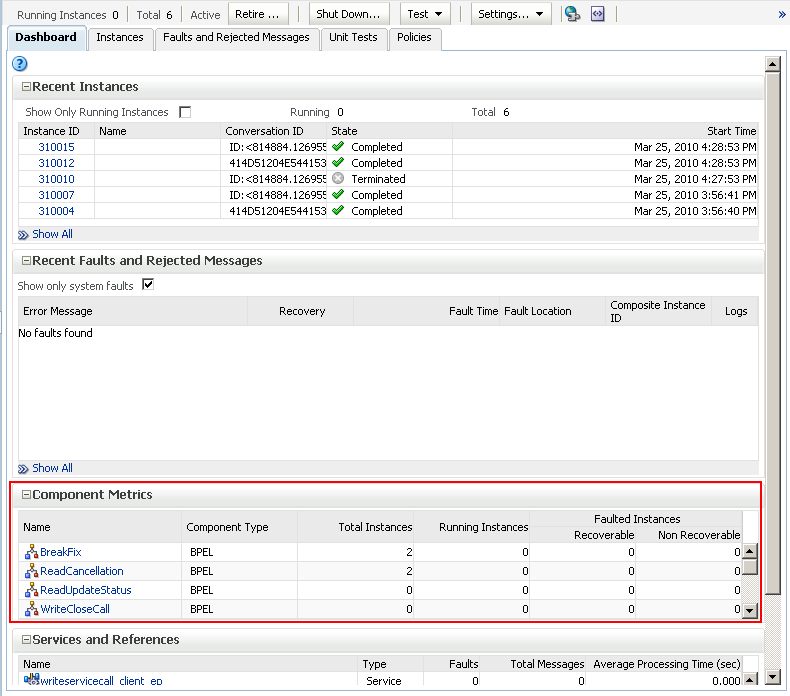
  • Instead of click on instance id of the composite at "Collapse Recent Instances" portlet of the dashboard, that usually would open the process tree view,  search for your BPEL process at "Component Metrics" portlet of the dashboard and click on its name.
  • The console will turn to the "Instances" tab ans will show just instances of the BPEL process, and not instances of the composite.

  • Then, when you click on the instance id of a BPEL process instance, the new window will show the Audit Trail directly, instead of open the problematic process three view.
References:
  • Document ID 972013.1 - EM Console Freezes when Viewing a Big Audit Trail in 11g
  • Bug ID 9120676 - STUCK THREADS WHEN VIEWING AUDIT TRAIL IN 11G

Friday, March 19, 2010

Oracle BPEL 11g - Correlation Sets

Correlation Sets is as set of configurations that allow the process to receive messages during its execution even if the invoker doesn't have the Correlation ID necessary to indicate to the engine to which instance the message needs to be delivered. With Correlation Sets a group of business data can be used to inform the engine how to match the message received with the correct instance that is already in execution.

To understand correlation sets is necessary to know some main concepts:
  • Property: like a variable, a property stores the information that will be used to match when a new message arrives.
  • Property Alias: is used in two situations - as a assign, to define what information needs to be stored in the property, and as a query, to match the information received in a message with the information stored in the property.
Itens below is a step-by-step showing how to configure Correlation Sets:

1 - Create a new operation in the process interface, allowing it to receive a message during process execution
  • Open the WSDL that describes BPEL service interface. Find messages and operations already defined.
  • Create a new message and a new operation in the inbound PortType that uses the message created. You can use some data type already defined, define a new data type at the XSD file already imported by the WSDL or import any XSD to use a data type defined externally.
  • Verify that the new operation is available at the process interface.

2 - Change the process to use the new operation during the process execution
  • Open the BPEL process and add a new Receive activity in the middle of process execution. Before and after this Receive you may have as many activities as necessary. Point the new activity to the PartnerLink that represents the process interface.
  • Select the operation defined previously on WSDL and create a new variable to store the message that will be received.

3 - Create and initialize the Correlation Set with business value that will be used to match the message that will be received
  • Open the Receive activity that starts the process. Select the "Correlation" tab and click on "Create" button. Important: to initialize the Correlation Set you could use any Invoke or Receive activity before the Receive activity you will receive the message that you want to match.
  • Define Correlation Set name and click on "Add" button.
  • Choose the "input" field from "InputVariable". Click on "+" button right to "Property" field and define the name of the property that will store the input field value.
  • Click "OK" once to confirm Property creation, again to confirm Property Alias creation and one more time to confirm Correlation Set creation. Change "Initiate" field to "yes". This will indicate to the engine that you want to initilize the Property with the field content defined by the XPath expression of the Property Alias.

4 - Match the incoming message
  • Open the Receive activity that will receive the intermediate message. Select the "Correlation" tab and click on "Add" button.
  • Select the Correlation Set previously created and click on "OK".
  • Select the Correlation Set added and click on "Edit" button.
  • Select the Property of the Correlation Set an click again on "Edit" button.
  • Choose the "input" field from Intermediate Receive's variable and click "OK". Then, click "OK" again to confirm the Correlation Set change. This will create a new Property Alias that matches intermediate message value received with the value stored in the Property initialized previously.
  • This time, leave the "Initiate" field as default ("no"), because we don't want to change the property value. We just want to match its value with the value received by the Intermediate operation message.

With this configuration, BPEL engine can match business value stored in the property (initialized in the first Receive activity) with the the message value received by the Intermediate Operation and deliver the message for the correct running instance.


To download this sample, click here.